How to set up a teleprompter on iPhone
Set up your iPhone, script, scrolling mode and camera for a readable teleprompter recording in CueCam.
Quick answer
An iPhone teleprompter displays your script beside the camera preview. In CueCam, prepare the text, choose how it scrolls and record a short test before your full take. Text placed close to the lens helps reduce visible eye movement.
Step by step
Set up the camera before the script
Place the iPhone securely at eye level and face a light source. Select the front camera when you need to see yourself, or the rear camera with a separate operator. Leave space for the final crop. Record ten seconds and listen for noise before starting.
Make the script easy to speak
Paste your text into a script and break long paragraphs into short spoken phrases. Read a sentence aloud and simplify words that trip you up. Choose a comfortable text size and narrow reading area so your gaze stays near the lens.
Choose a scrolling mode
Word Tracking follows recognized speech; Fixed Speed moves at a pace you select; Timed Scrolling helps pace a script toward a target duration. Start with a short passage and check that the mode fits the way you speak.
Check permissions and make a test take
Allow camera and microphone access for recording, and speech recognition when using Word Tracking. Check the selected microphone, pause once during the test and play the recording back with sound. Adjust the script or pace before recording the full video.
Edit and check the export
Trim the beginning and ending, review captions and choose the aspect ratio for the destination. Watch the exported file to confirm that text, sound and framing survived the crop. Keep the original take until the export has been checked.
Try this with your next recording
Use a 60-word introduction to your next tutorial. Record it once at fixed speed and once with Word Tracking. Compare eye movement, pauses and audio, then choose the setting that requires fewer corrections for you.
What to check before you record
A teleprompter does not automatically correct eye direction, delivery or pronunciation. Move the text near the lens and rehearse. Core recording and editing features require a subscription; the download includes a limited evaluation. Device and app version determine available recording options.
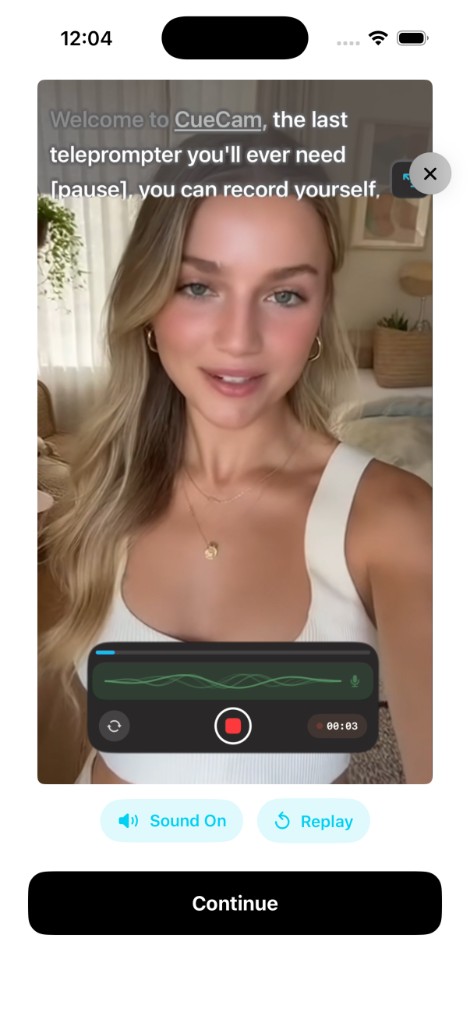
Try the workflow in CueCam
Free download with a limited evaluation. Full recording and editing access requires a subscription. Check current pricing and availability on the App Store.
View CueCam on the App Store