 CueCam
ANDROID RECORDING GUIDE
Teleprompter for Android: record your first video with CueCam
Read near the camera, keep your place and finish with a video you can share. This guide follows the Android version of CueCam, from your first script to the exported file.
 Using an iPhone? Read the iPhone guide →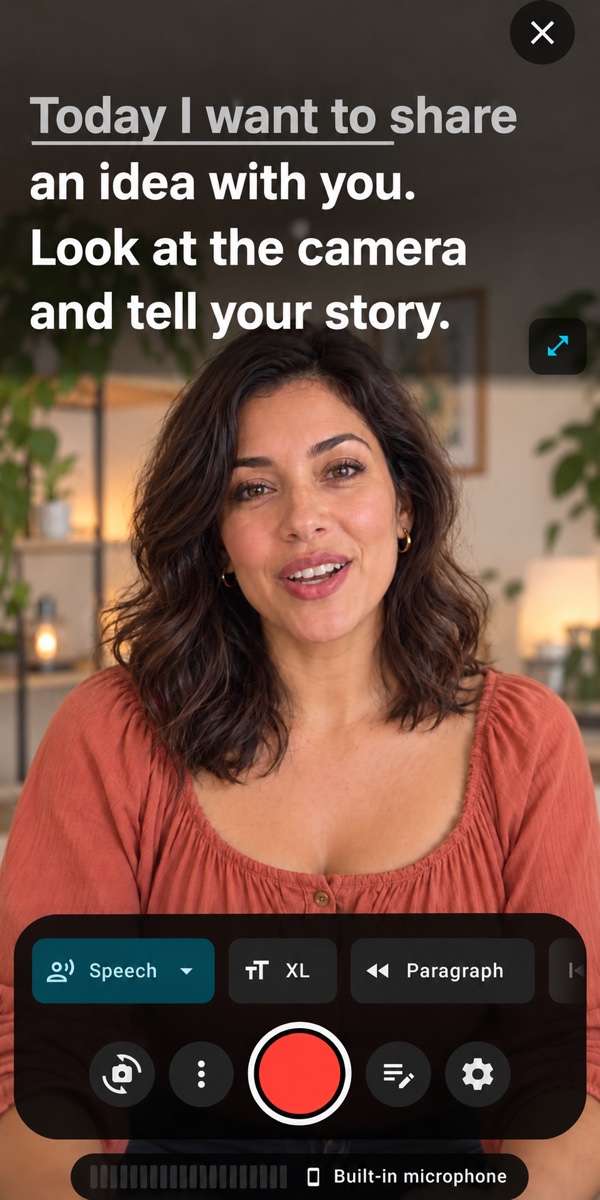
- 1
Prepare a script you can say out loud
Create a script or paste your draft into the library. Break it into short paragraphs and replace any sentence that feels awkward when spoken. For your first test, use about 60 words. Set the phone at eye level and leave enough space around your face for the final crop.
- 2
Choose how the text moves
Use Speech / Word Tracking to follow recognized words, Fixed Speed for continuous scrolling, or Timed Scrolling for a target duration. Start with Fixed Speed if you want to rehearse without relying on speech recognition. Adjust the text size and position so your gaze stays near the lens.
- 3
Check the camera and microphone
Choose the front or rear camera. Record ten seconds and listen to the playback, especially if you use a Bluetooth or external microphone. Resolution, frame rate and stabilization depend on the phone and camera; choose from the options shown on your device.
- 4
Record, pause and try again
Run the short script once before the full take. If voice tracking loses your place, check the selected language and microphone, reduce background noise or switch to fixed speed. A Bluetooth keyboard, presenter remote or foot pedal can help you control a session hands-free. Test your own device before recording.
- 5
Trim and review the subtitles
Open the recording in the editor. Trim the beginning and end, generate subtitles, then check names, numbers and timing. Speech-recognition language support depends on your Android device. Choose a caption style that stays readable over the video.
- 6
Export and watch the actual file
Select a frame for your destination: vertical for Reels or Shorts, square for a feed, or widescreen for a longer video. Review the crop and caption placement, export, then watch the saved file with sound before publishing.
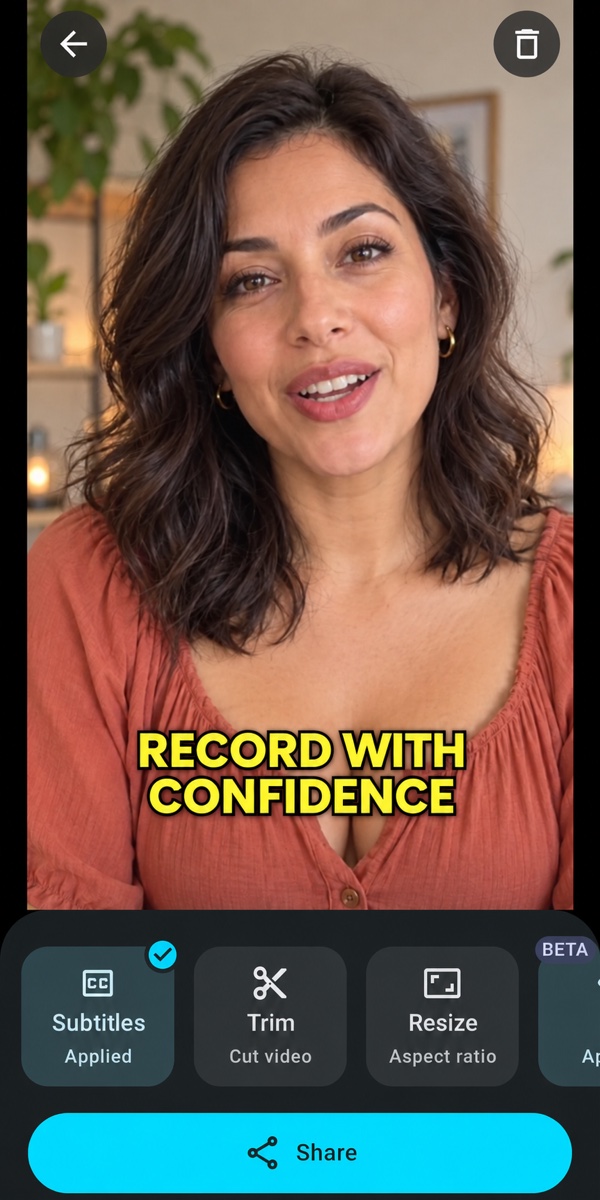
The Android interface, from reading to editing
Read your script while recording, then review the subtitles in the editor before sharing your video.
- Read beside the camera
- Review the recording and subtitles
Three things to check before a longer recording
Voice recognition
Use the language and recognition options available on your phone. A quiet room and a clear microphone help the script follow your speech.
Camera options
Up to 4K or 60 FPS is device-dependent. Do not assume every resolution and frame-rate combination is available on every camera.
Network and privacy
Recording and editing use your device. The optional Eye Contact beta uploads the video for cloud processing. Google Play billing, downloads and some speech services may also need internet.
CueCam on Android: common questions
Is CueCam available on Android?
Yes. Install CueCam: Teleprompter & Video from the Megacubos LLC listing on Google Play. The download includes onboarding and a limited demo; full functionality requires a subscription. Check the current offer inside the app.
Can I record while reading the script?
Yes. The teleprompter overlays the camera preview so you can read and record on the same phone. Make a short test to check text position, audio and pacing.
Does the Android app have the same controls as iPhone?
The versions share the script, recording and editing workflow, but device support and controls can differ. Use this Android guide for Android; consult the iPhone guide for Apple-specific features such as Apple Watch control.
Try your first take on Android
Paste a short script, choose a scroll mode and record a test.
Android features checked against the current Google Play listing.